


Delivered as an Epin. Valid for TR accounts.
10,00 TL
Type a total and the quantity is calculated for you
Other Products
Razer Gold TL






Razer Gold TL Guide: What Is This Balance Used For?
Razer Gold TL is the code that lets you load Turkish Lira balance into Razer's virtual payment system, Razer Gold. You can use the balance you load without linking a credit card for purchases across thousands of games and platforms supported by Razer Gold. It's a practical solution for players who don't want to share card information or prefer using a code for online payment. Since Razer Gold is a system designed to let you shop across different games and platforms with a single balance, you can use the balance you load once in more than one place. Thanks to code-based top-up, you can shop without entering or storing card information. In this respect, Razer Gold TL is a preferred method especially for users who don't want to share card information for online payment.
Razer Gold TL Denominations
Razer Gold TL is offered for sale in denominations that suit different budgets: 5 TL, 10 TL, 15 TL, 25 TL, 50 TL, 100 TL, 250 TL, 500 TL, and 1,000 TL Epin. Low denominations suit small one-time expenses, and large denominations suit regular use. If you're planning to use your Razer Gold balance in more than one game, choosing a denomination close to your need prevents balance from sitting idle in your account. Keeping the total amount of your planned spending in mind when choosing a denomination prevents you from buying an unnecessary denomination.
How Much Is Razer Gold TL, Prices
You can see the current selling amount of each denomination from the price list on this page. Since the denomination name and the balance loaded onto it are the same, comparing is easy, but you should still confirm the current amount from the list. Since amounts can change during campaign periods, it's useful to check the list before purchasing. You can compare all the options in the list to see whether large denominations are advantageous.
How Is Razer Gold TL Topped Up?
- Go to gold.razer.com and log in with your Razer Gold account.
- Proceed to gold.razer.com/gold/reload.
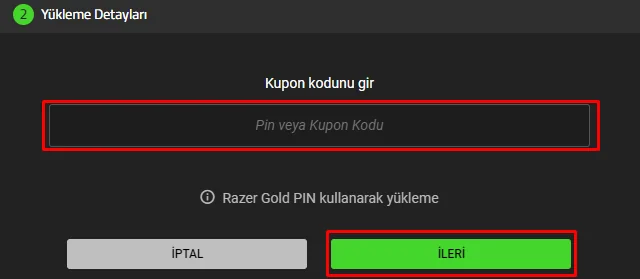
- Mark the "Razer Gold PIN" option as the payment method.
- Enter the code you got from Oyuneks in the "Reload Details" field at the bottom of the page.
- Click the "Next" button to complete the top-up.
Once the top-up is confirmed, your balance is reflected to your account instantly and becomes usable for purchases on supported games or platforms. You can log in to your account to check that your balance has been updated.
Points to Watch Out For
- Make sure you enter the code on the account you want to credit the Razer Gold TL balance to.
- The code is single-use; once activated, it cannot be transferred to another account.
- Entering the code completely and without spaces prevents you from getting an error.
- Making sure the game or platform you want to spend your balance on supports Razer Gold is important for usage after the transaction.
- You don't need to share your Razer Gold account password with anyone; the top-up is done only by entering the code.
- If the page gives an error during the top-up, check whether the balance has been reflected to your account before trying the code again.
Why Oyuneks?
The Razer Gold TL code you get from Oyuneks is credited to your account as soon as the purchase is complete and remains stored in your my orders section, so you can view your code again anytime. If you get stuck at the top-up steps, you can get a quick solution via live support. You can find and use your code from your order history whenever you need it, without writing it down. This way, even if you want to save up more than one code, you can access all of them from a single place. You can also easily remember which code you used by tracking codes you got from different denominations in the same place.
No reviews yet
Customers who bought this product can leave a review; the first one will appear here.
- Go to https://gold.razer.com and sign in.
- After signing in, go to https://gold.razer.com/gold/reload.
- Choose "Razer Gold PIN" as the payment method.
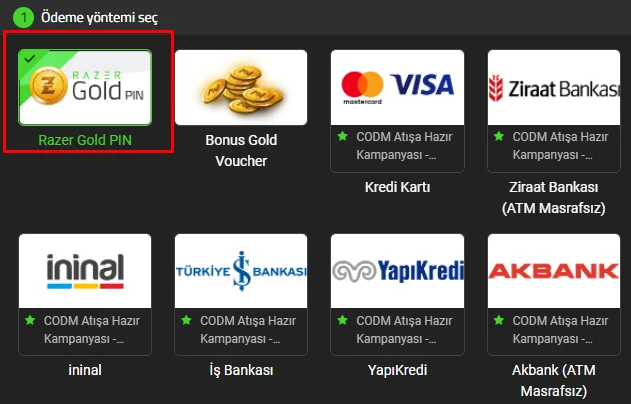
- Enter the Razer Gold code you bought from Oyuneks in the "Reload Details" field at the bottom of the page and click the "Next" button to complete the process.